
How to build a Lab Profile for the 3Shape Unite Store
07/11/2023To make your lab discoverable to clinics using 3Shape software, you need a Store Profile in 3Shape Communicate. Creating and maintaining a Store Profile is free of charge and helps increase your lab's visibility in the 3Shape Unite Store.
If you already have a 3Shape Communicate account, you can create or enhance your Store Profile by following the instructions below.
If you do not have a 3Shape Communicate account, first register through the Communicate Portal. Once registration is complete, you can create and manage your Store Profile. A complete and up-to-date Store Profile helps clinics find your lab and connect with you through the 3Shape ecosystem.
How to Build Your Store Profile
The only requirement for the Store Profile menu to appear in the portal is that your company is registered as a lab. If you cannot see the Store Profile menu, try clearing your browser cache and cookies, then log in again.

Step 1: Log in to your 3Shape Communicate account. Open Store Profile, select Begin, and then select Next.

Step 2: On the Store Front tab, enter your lab name and description. You can also add a logo, photos, and videos. When finished, select Next.
The uploaded files must meet the following requirements:
- The logo must be at least 160 × 160 pixels and in PNG format.
- The total size of the images and videos must not exceed 12 MB.

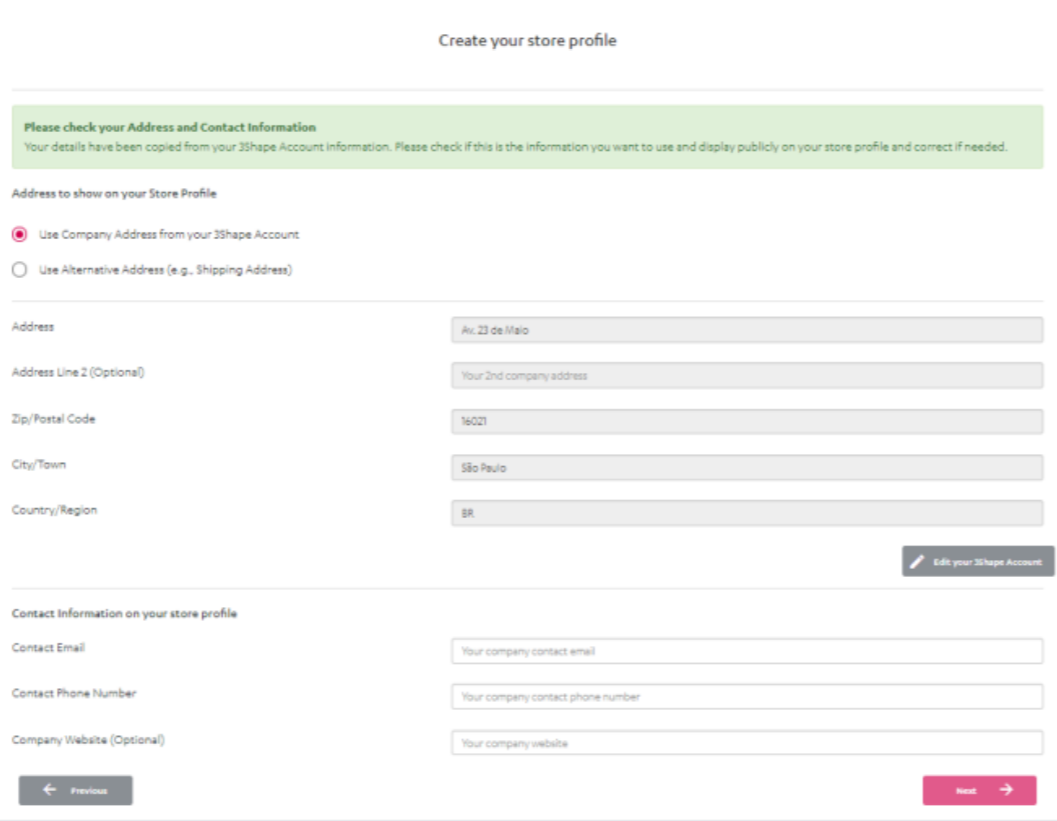
Step 3: On the Company Details tab, choose the address to display and add your contact information. Select Next to continue.
Step 4: On the Services tab, add the countries you want to work with and select all the services your lab can provide. When finished, select Next.
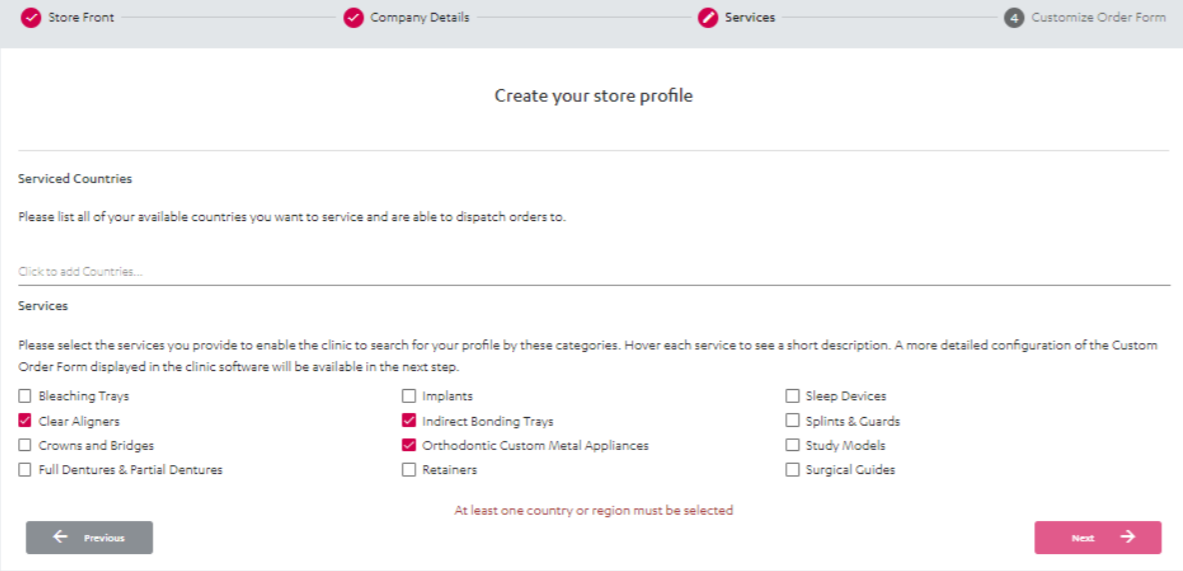
Ensure that you have the necessary regulatory approvals and certificates for the countries you want to serve.
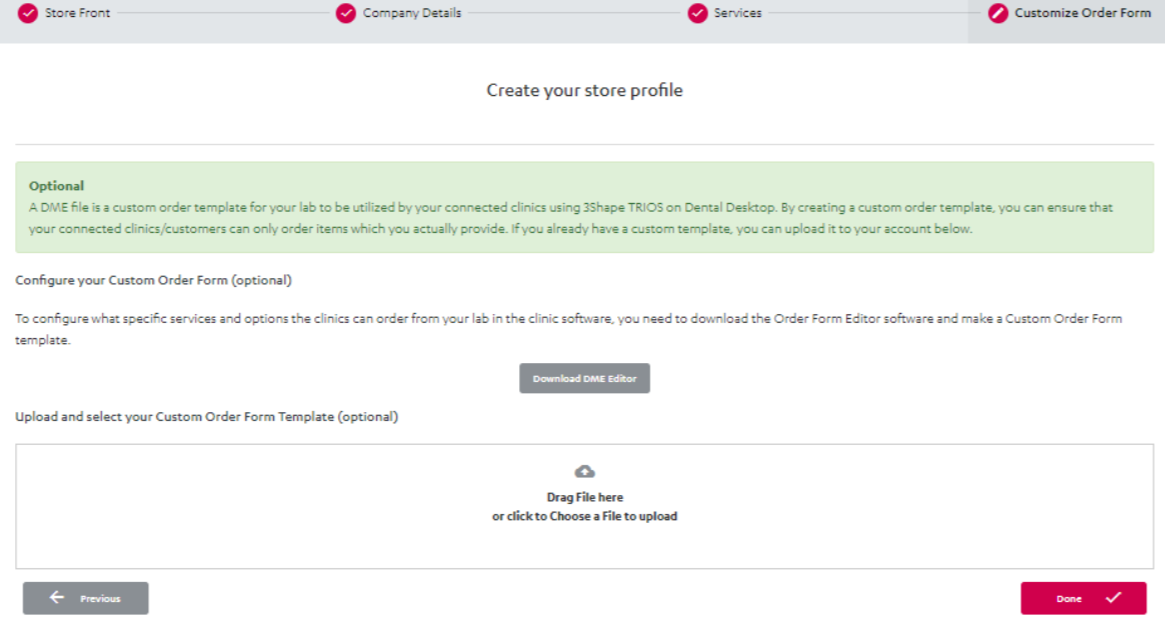
Step 5: The final tab is Customize Order Form. This step is optional.
First, configure your custom order template (DME template) using the downloaded DME Editor software. Then upload your DME template here. You can select Previous to make changes during the process. When everything is ready, select Done.
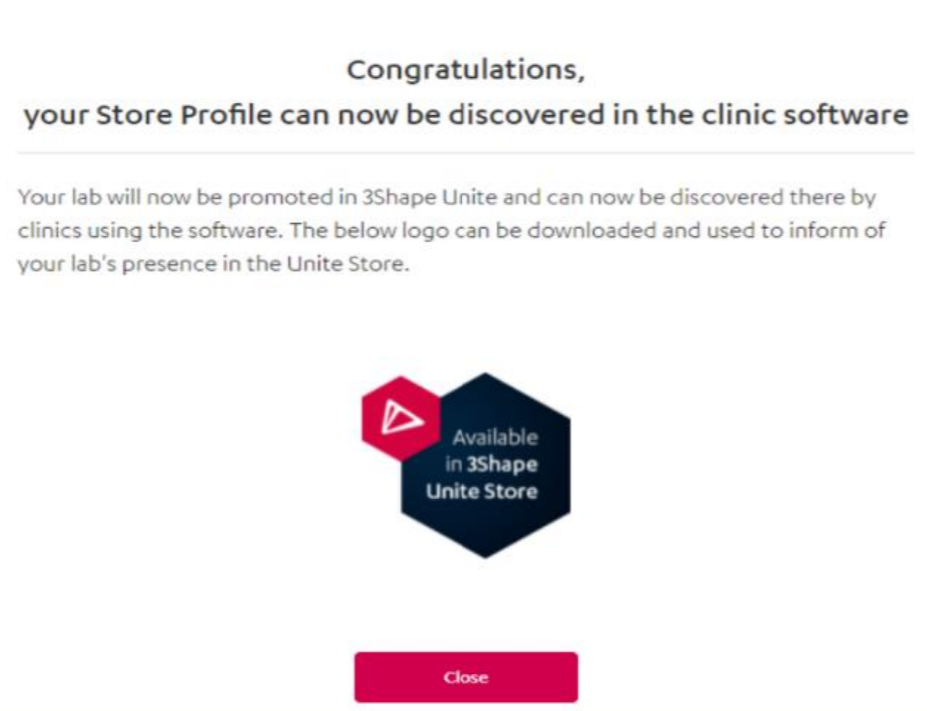
Step 6: At the end of the profile setup, you can download a “3Shape Unite for Labs” logo. You can save it and use it in your own marketing materials.
Contact 3Shape Support if you have any further questions.
For full information on correct usage consult the official Safety and Setup Guide and the most current Manual.