
How to enable VistaSoft (Dürr Dental) integration with 3Shape Unite
07/11/2023Prerequisites for the integration:
- 3Shape Unite 21.1.x or newer.
- VistaSoft 3.0.20.x or newer.
- Both standalone and client-server setups are supported, see Known Limitations.
The integration between 3Shape Unite and VistaSoft (Dürr Dental) automates patient management in 3Shape Unite from VistaSoft, including creating, merging, and updating patients.
Read more about VistaSoft (Dürr Dental).
How to enable the integration in Unite
Follow the instructions in the related article: How to install "PMS integration" App from Unite Store
How to enable the integration in VistaSoft (Dürr Dental)
Consult the VistaSoft documentation for detailed instructions. The following steps are provided as an aid to setting up and using the integration in VistaSoft.
Step 1: In VistaSoft, open the Configuration tab.
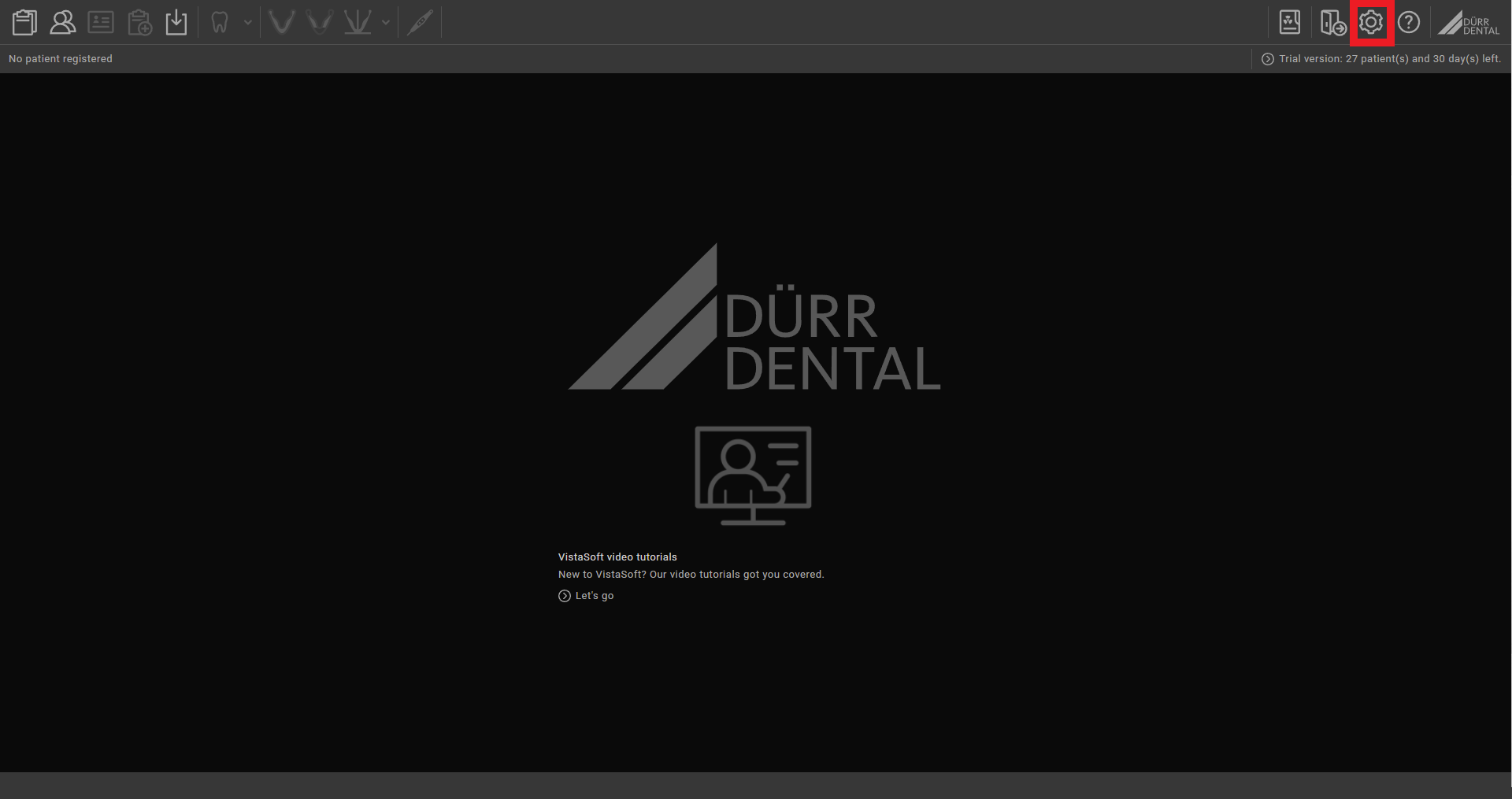
Step 2: In the window that opens, select Features and click 3Shape integration.
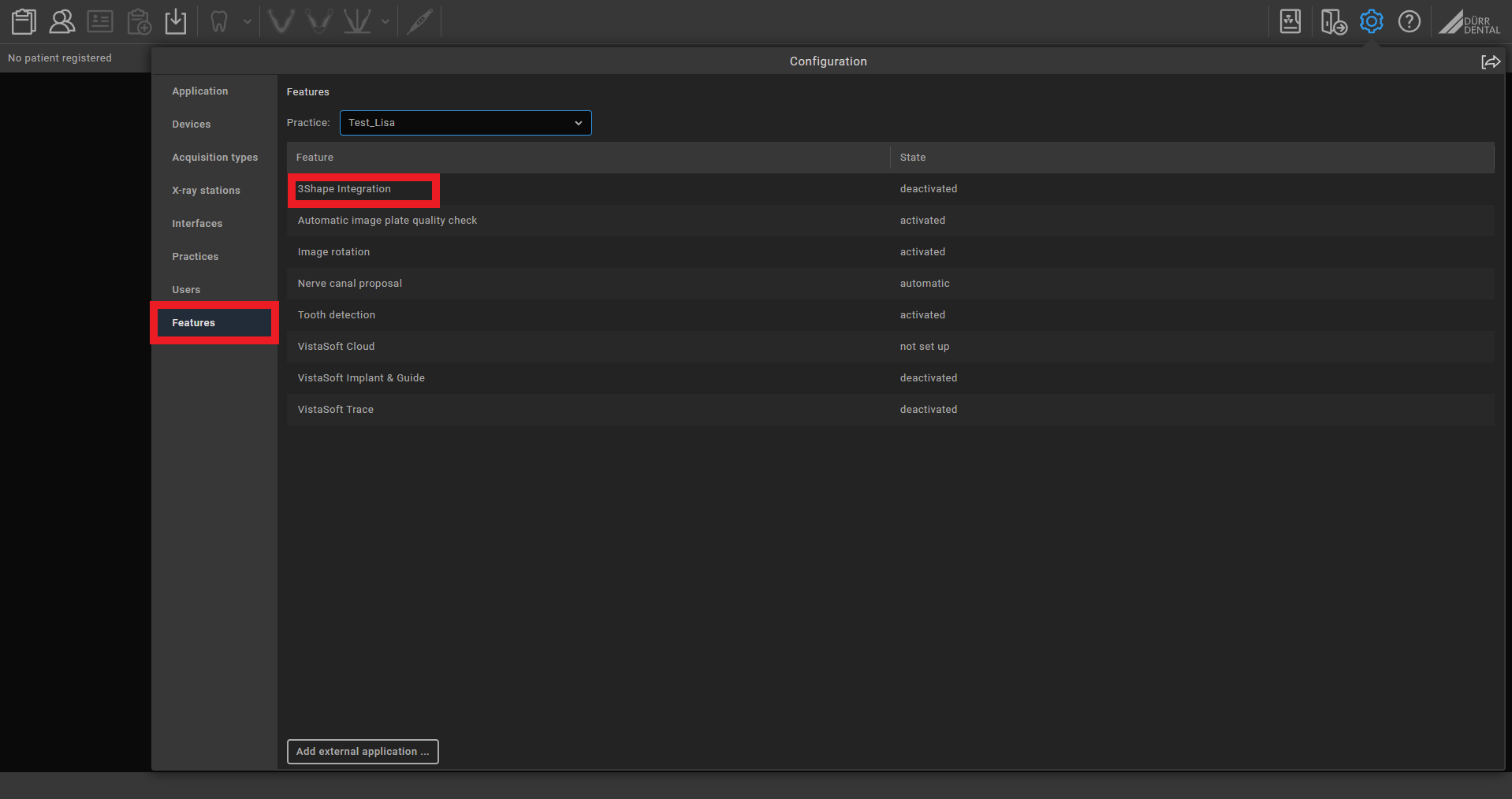
Step 3: Open the Configuration tab.
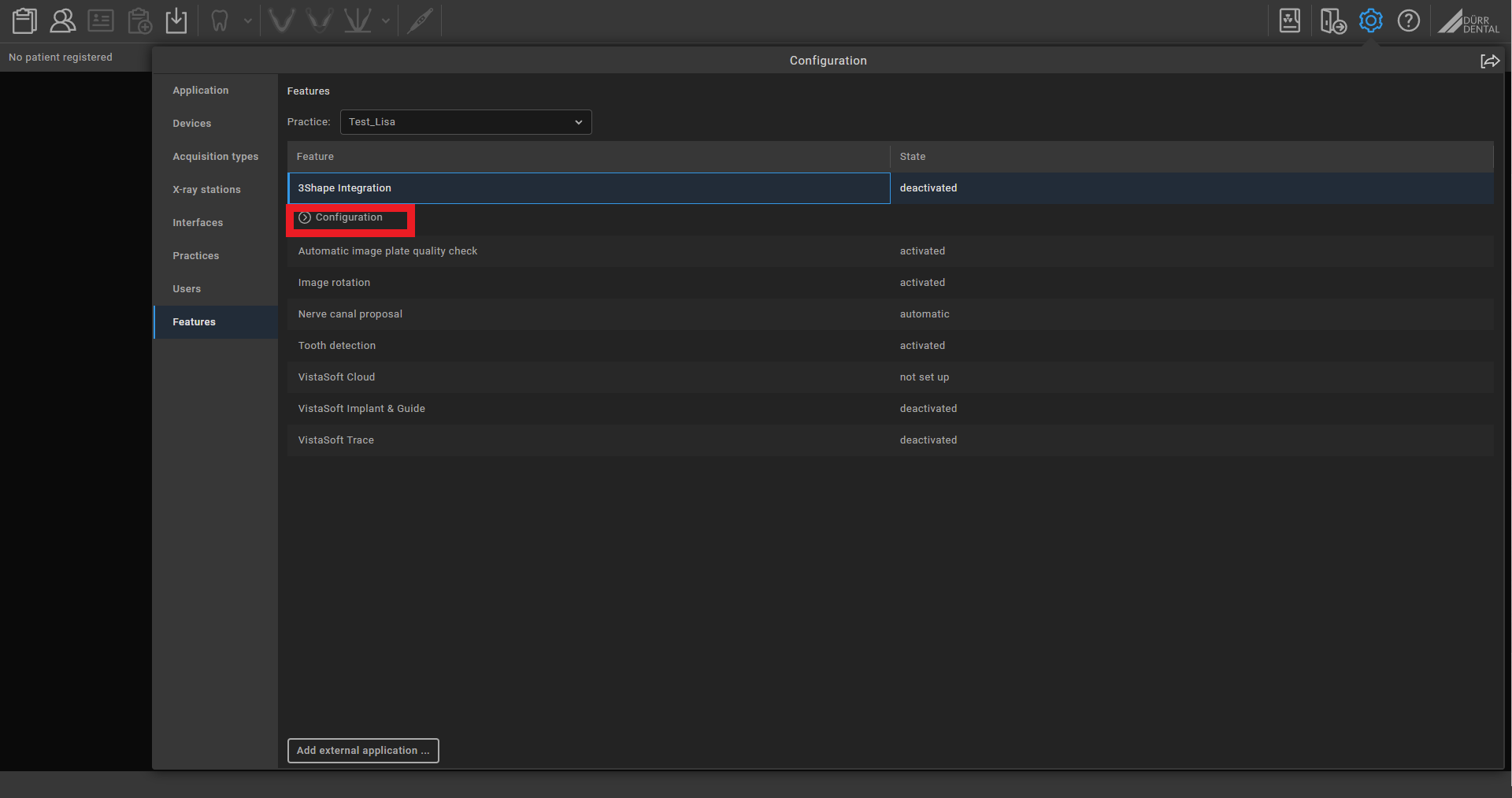
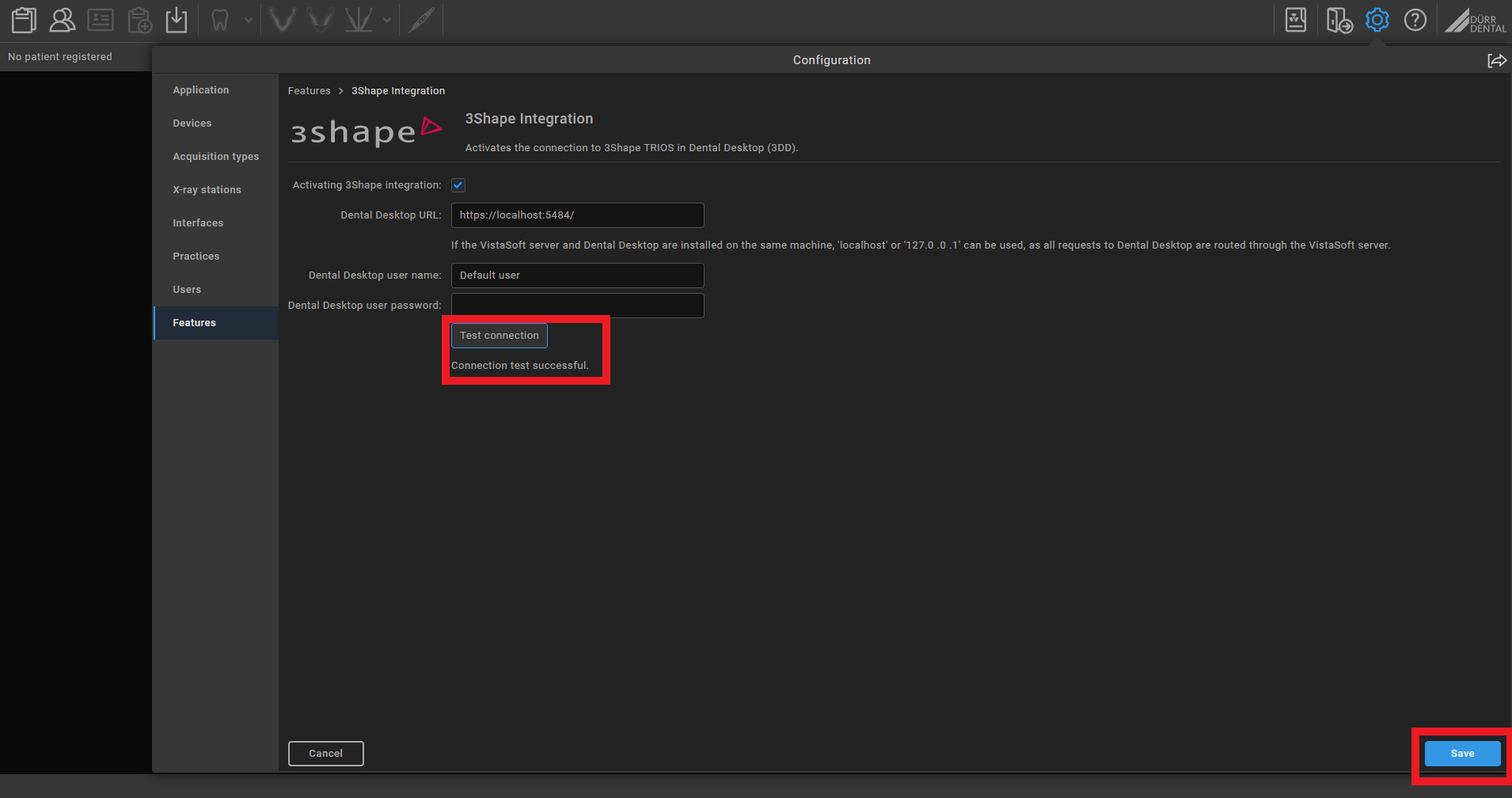
Step 4: Select Activating 3Shape integration and enter your username and password. Use the same credentials as in 3Shape Unite.
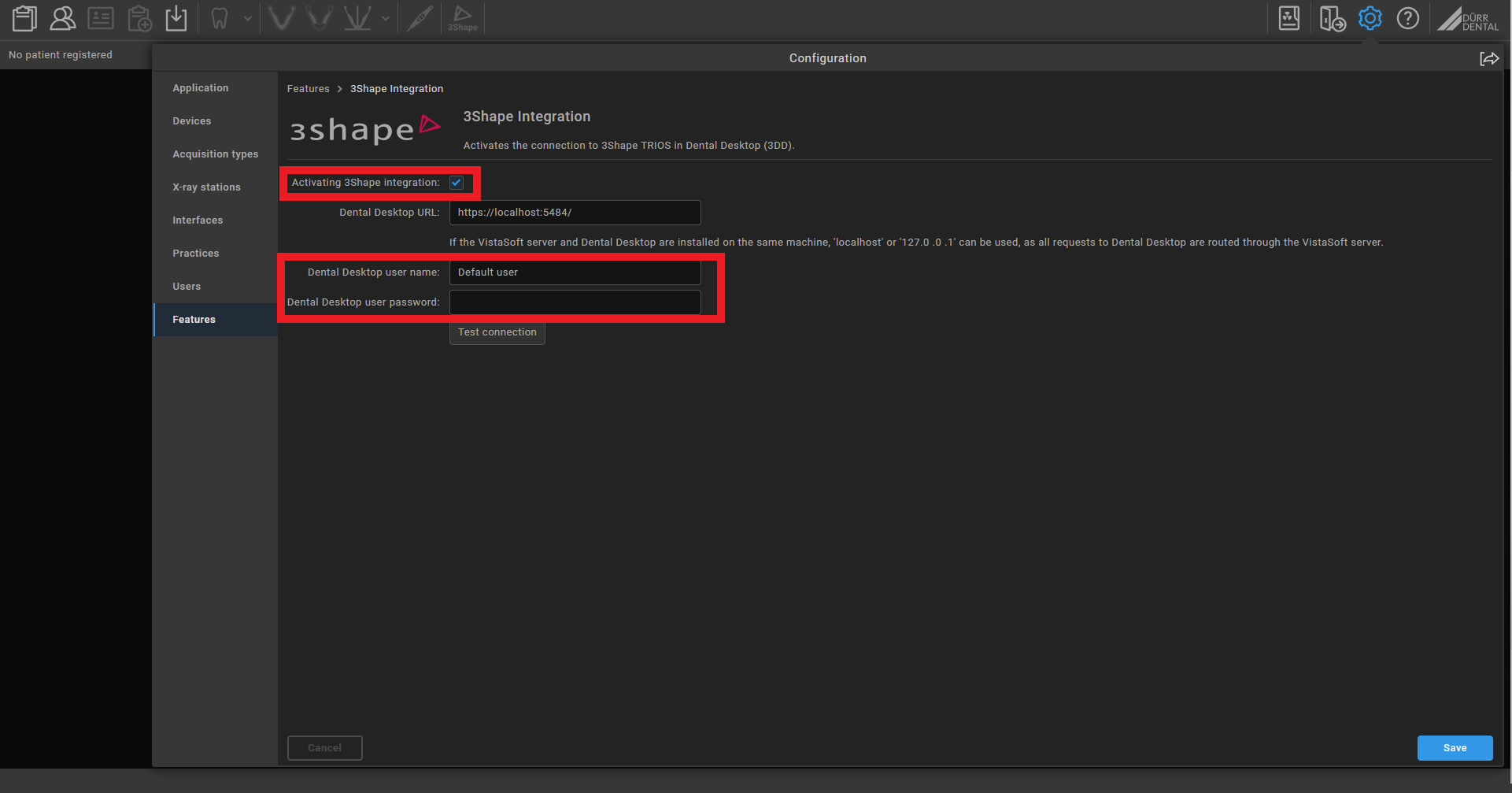
Step 5: Click Test connection.
If the connection is successful, the message "Connection test successful" appears. Click Save to register your changes.
Step 6: On the Features page, the connection state for 3Shape Integration changes to Activated.
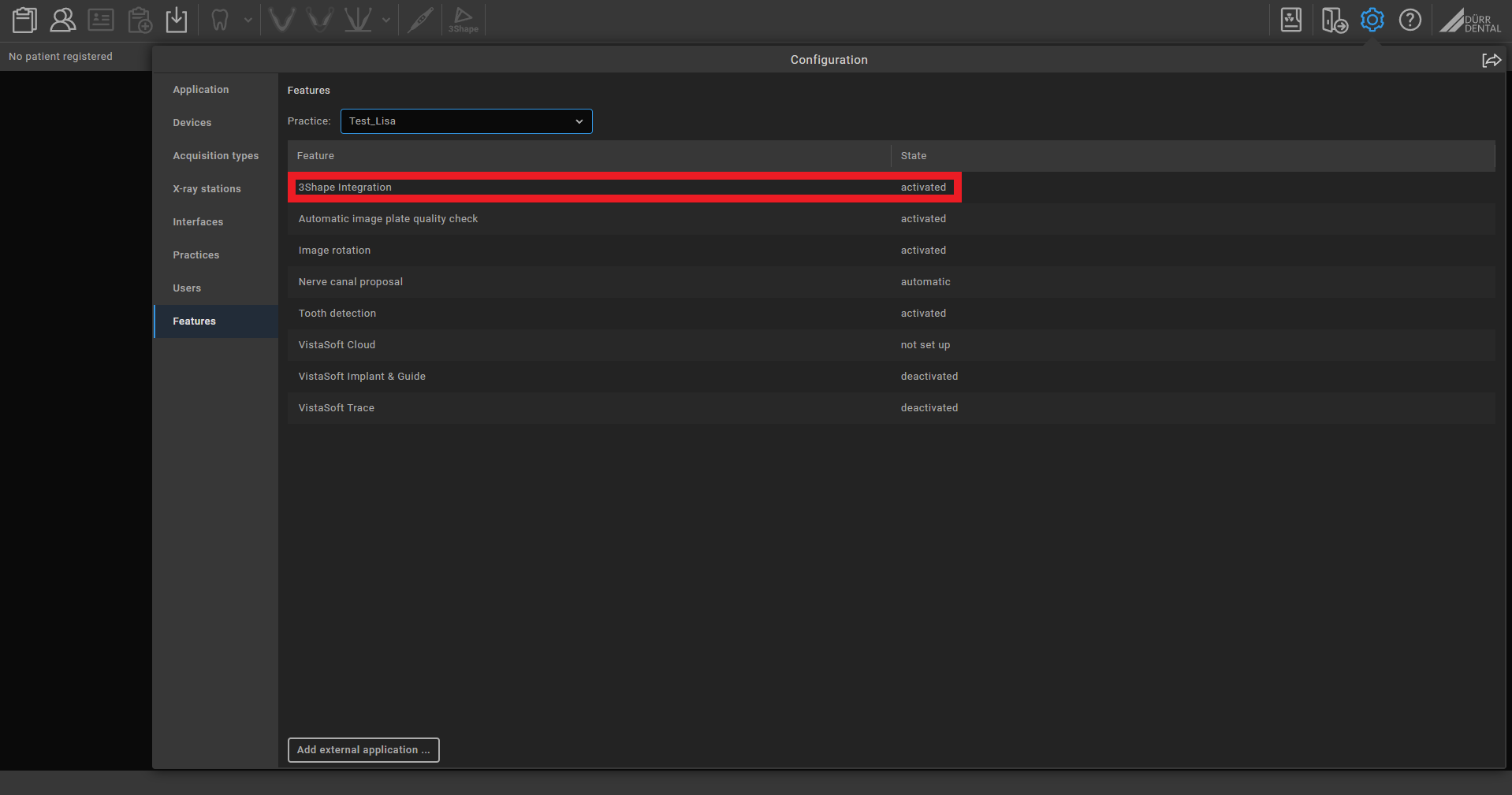
Step 7: The 3Shape button appears in the toolbar.

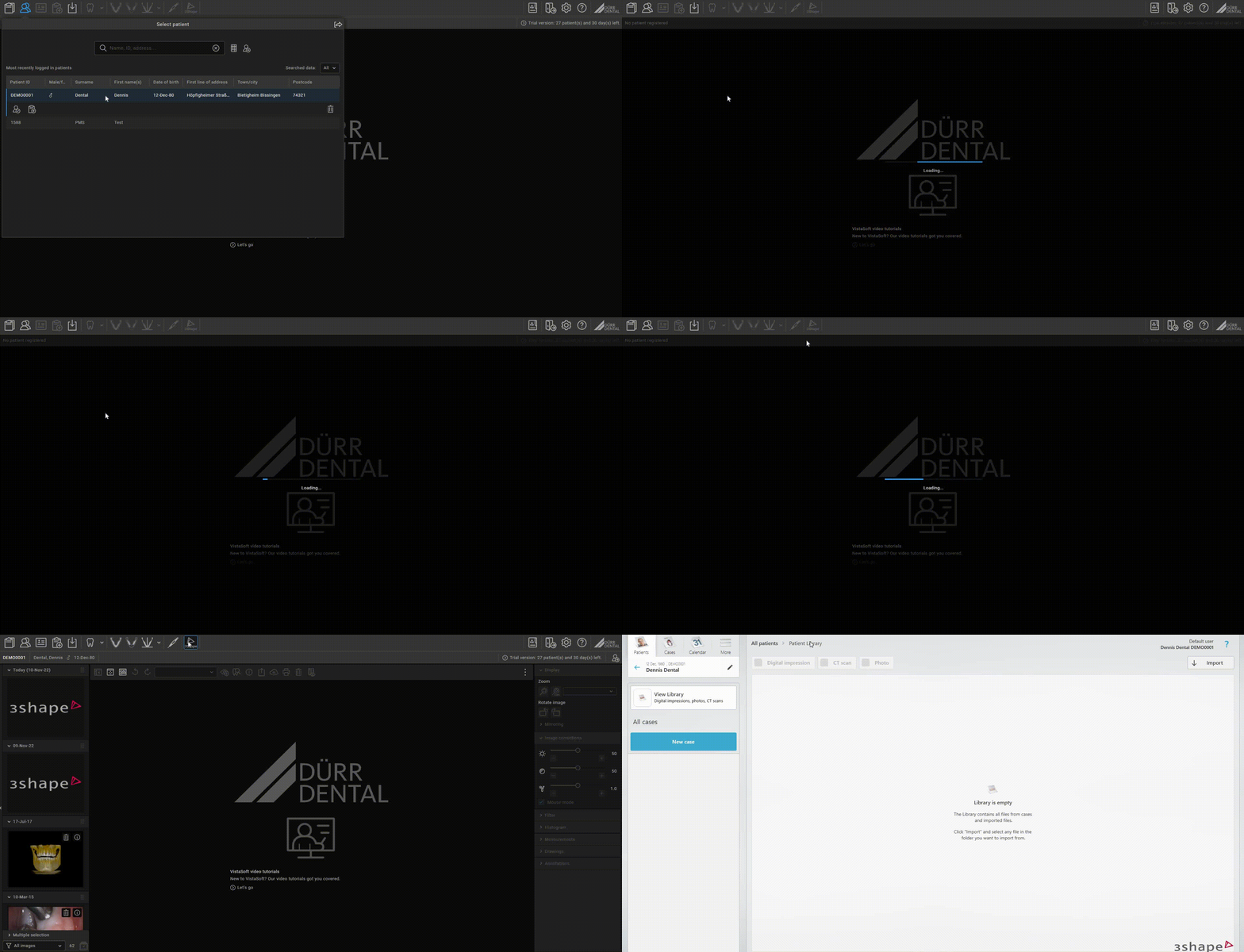
The integration is now set up. You can see it working in the video below.
Known limitations
- Patient updates are only propagated from VistaSoft (Dürr Dental) to 3Shape Unite, not the other way around.
- For information about different PMS and Unite setup options, and integration on TRIOS Move, see Practice management system & Imaging system setup overview
Contact 3Shape Support if you have further questions.
For full information on correct usage please consult the official Safety and Setup Guide and the most current Manual.