Get to know 3Shape Unite Cloud
17/04/20243Shape Unite Cloud is a completely new cloud-based and patient centric software accessible on any device – mobile, tablet, PC and Mac. Everything you do in 3Shape Unite instantly becomes available in 3Shape Unite Cloud, and vice-versa. Thus, allowing you to always stay up to date on your cases, easily attach images, track case progress, and communicate with your lab.
Get access to all your patients and cases
All your patients from 3Shape Unite will now be visible in the 3Shape Unite Cloud in the ‘Patients’ tab. You can access all cases and files associated with a patient including their details. Additionally, you will find all your cases, regardless in which status your cases are and see their status and delivery dates. Upon opening a case, you will in detail see scans and other media, order details, as well as who created, modified, and received the case.
Add, edit, and delete your patients
Adding patients in 3Shape Unite Cloud will allow you to front-load administrative work. In case of any mistakes, you can edit patient details or even delete patient and associated data with it. Any change you make in 3Shape Unite Cloud will be reflected in 3Shape Unite.
Attach pictures to patient profiles
You can quickly take and add pictures to your patient’s profile with your mobile or tablet using the 3Shape Unite Cloud app. Pictures will immediately appear in 3Shape Unite, for you to start your Engagement Apps workflow.
How to add a picture to a patient profile in Unite Cloud
Step 1: Open Unite Cloud on your phone or in the browser.
Step 2: Go to the patient list and select the patient profile you want to add the picture to.
Step 3: In the patient profile, select the Files tab.

Step 4: Tap Add file. From the menu that appears, select the method you would like to use to add a picture. 
Step 6: Confirm the upload. The picture will now appear in the patient’s Files section.
In the browser

Efficient and effective case collaboration
Compliant messaging
Unlike many of the existing messaging applications, 3Shape Unite Cloud meets the comprehensive requirements outlined by HIPAA and GDPR, ensuring your patient’s information is kept confidential and secured. With 3Shape Unite Cloud you can communicate with your lab in a safe and secure manner.
Attaching pictures
Take pictures of patients and upload it directly to the case in one click with your phone or tablet.
How to add an image to a case
Step 1: Open Unite Cloud on your phone or in the browser.
Step 2: Open the case in one of two ways:
- Go to the case list and tap the case.
- Or open the patient profile and tap the case from there.
If the case has not been sent yet
- In the case, tap Files.
- Tap Add file.
-
Choose how to add the image:
- Take a picture: use your phone’s camera to capture a new photo.
- Upload from library: select an existing photo from your photo library.
If the case has already been sent
Once a case is sent, you send the image as a message instead.
- In the case, go to Messages.
- Tap the + button next to Write a message.
-
Choose how to add the image:
- Take a picture: use your phone’s camera to capture a new photo.
- Select from library: choose an existing photo from your photo library.
- Send the message.
Push and e-mail notifications
Enable push and email notifications to always stay up to date on how your case is progressing.

View your lab connections and connect with a lab
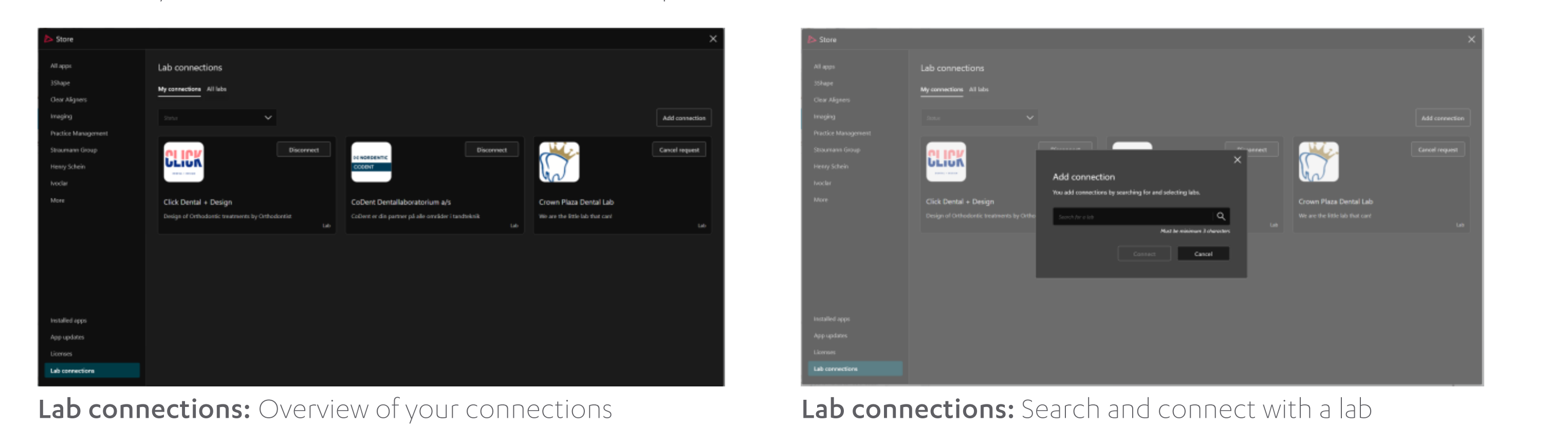
Now you can access 3Shape Unite Store directly from 3Shape Unite Cloud to manage your lab connections. You can search for new lab partners and get an overview of your current connections.
In 3Shape Unite Store you will find a new section ‘Lab connections. The tab ‘My connections’ will give you a
complete overview of your active and pending lab connections and you can perform the following actions:
- Remove a connection with a lab by clicking ‘Disconnect’ button.
- Cancel a connection request by clicking ‘Cancel request’ button.
- Connect with a lab clicking ‘Add connection’ button.
You can search for a lab by their name, address, email address and phone number. Once your lab connection request is approved, you will be notified. You can browse the full list of available labs, filter by service (e.g., crown and bridge) in the ‘All labs’ tab. Search for labs by their name, address, email address or phone number.