
Installing ScanIt Dental in 3Shape Unite After Installing or Updating to Dental System 2023
07/11/2023Starting with Dental System 2023, ScanIt Dental is provided through the 3Shape Unite platform. After installing or updating Dental System, ensure that 3Shape Unite and the ScanIt Dental module are installed and up to date before scanning.
Updating 3Shape Unite and Installing ScanIt Dental
Step 1: Open 3Shape Unite.
Step 2: Verify that 3Shape Unite is installed and that the ScanIt Dental module is available.
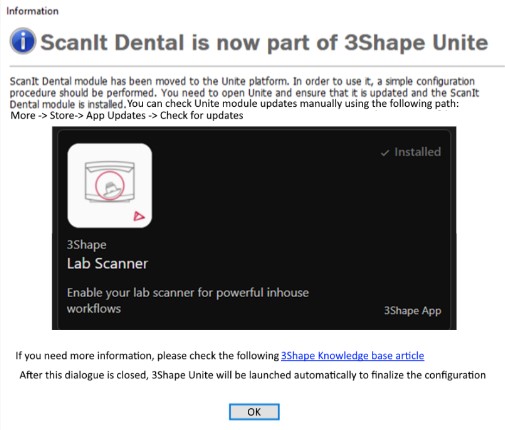
Step 3: After installing Dental System, follow the prompt to open 3Shape Unite and download the required modules.
After closing the prompt, 3Shape Unite starts automatically.
If 3Shape Unite is already installed, wait for all available updates and modules to install. During this process, 3Shape Unite may restart automatically.
Although the required modules are downloaded automatically, it is recommended to manually check for updates.
Step 4: Select "More".
Step 5: Select "Store".
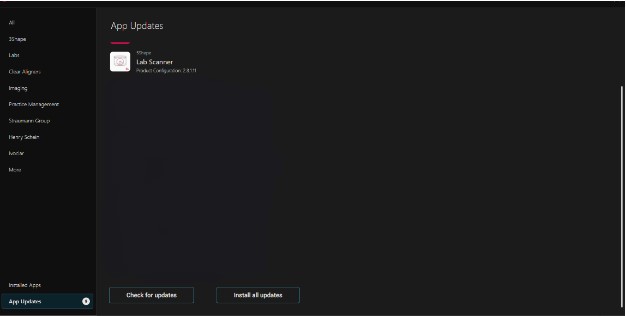
Step 6: Select "App Updates".
Step 7: Click "Check for Updates".
Step 8: Click "Install All Updates".
3Shape Unite searches for and installs all available updates and modules automatically.
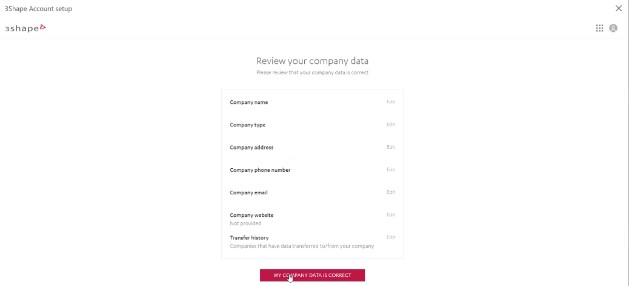
Step 9: If prompted, review your company information by following the on-screen instructions.
Step 10: Create a PIN code for accessing 3Shape Unite on the current device.

Installing 3Shape Unite
If 3Shape Unite is not already installed, it is downloaded automatically during the Dental System installation.
Step 1: Complete the Dental System installation.
Step 2: Wait for 3Shape Unite to start automatically.
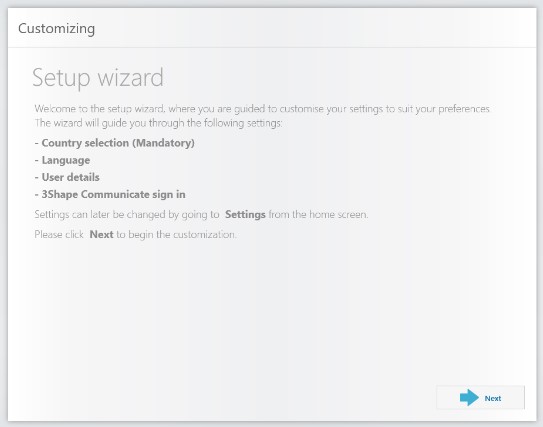
Step 3: Complete the 3Shape Unite Setup Wizard by following the on-screen instructions.
Verifying the Installation
After completing the setup, verify that the latest version of 3Shape Unite and all required modules are installed.
Step 1: Open 3Shape Unite.
Step 2: Select "More".
Step 3: Select "Store".
Step 4: Select "App Updates".
Step 5: Click "Check for Updates".
Step 6: Click "Install All Updates" if updates are available.
Once all updates have been installed, close 3Shape Unite and continue scanning in Dental System.
Contact 3Shape Support if you have any further questions.
For full information on correct usage consult the official Safety and Setup Guide and the most current Manual.